On this page
Installing Prometheus and Grafana is not an observability strategy. The useful unit is an operating loop: define reliability, collect a bounded signal, turn expensive queries into recording rules, page on sustained budget consumption, and make the whole path testable.
I built that loop around a small Spring Boot 4.1 API. The experiment generated 240 known requests—216 normal, 12 deliberately slow, and 12 failed—then verified the application, scrape target, Prometheus rules, Alertmanager, and provisioned dashboard. The point was not the dashboard screenshot. It was proving that every panel and alert represented a decision I could act on.
Start with the service-level objective
An alert such as “CPU above 80%” says that a resource is busy. It does not say whether users are receiving a reliable service. I started with two user-facing objectives instead:
| Indicator | Objective | Error budget |
|---|---|---|
| Non-5xx HTTP requests | 99.5% over 30 days | 0.5% may fail |
| Request latency | 95% below 250 ms | 5% may be slower |
The availability SLI for one window is:
success ratio = 1 - (5xx request rate / total request rate)The 0.5% error budget is not permission to ignore failures. It is a common scale for release risk and incident urgency. Consuming it slowly may justify a ticket; consuming it 14.4 times faster than planned is a paging condition.
This lab uses five-minute and one-hour windows so the behavior is visible locally. A production alert policy should use windows derived from the real SLO period, traffic shape, and on-call response time.
Keep the metrics endpoint off the public edge
Spring Boot exposes the Prometheus registry through Actuator:
implementation 'org.springframework.boot:spring-boot-starter-actuator'
implementation 'io.micrometer:micrometer-registry-prometheus'management:
server:
port: 9091
endpoints:
web:
exposure:
include: health,prometheus
metrics:
distribution:
percentiles-histogram:
http.server.requests: true
slo:
http.server.requests: 50ms,100ms,250ms,500ms,1sThe application listens on 8080; the management server listens on 9091. In the Compose experiment only 8080 is published. Prometheus reaches app:9091 on the private network.
That distinction matters. Do not solve production monitoring by opening Grafana on 3000 and Prometheus on 9090 to the internet. Operator surfaces expose topology, labels, queries, and sometimes control endpoints. Put them behind private networking and authenticated TLS termination. Disable default credentials, restrict administration, and treat Prometheus lifecycle or write endpoints as privileged operations.
The local ports in this experiment are loopback-bound so they cannot accept remote traffic:
| Component | Host binding | Purpose |
|---|---|---|
| API | 127.0.0.1:18049 | Generate known application traffic |
| Grafana | 127.0.0.1:13049 | Read the provisioned dashboard |
| Prometheus | 127.0.0.1:19090 | Inspect targets and PromQL |
| Alertmanager | 127.0.0.1:19093 | Inspect alert routing |
| Actuator | Not published | Scraped only inside the Compose network |
Cardinality is part of the design
A metric name is only half of a Prometheus time series. Every unique label set creates another series. A label such as user_id, request UUID, raw exception message, or unnormalized URL can turn one useful metric into millions of expensive series.
For HTTP metrics, use bounded labels such as method, status class, service, and route template. /orders/{orderId} is bounded; /orders/6fdb... is not. Put request-specific evidence in logs or traces, where it can be sampled and retained under a different cost model.
Before adding a label, I ask three questions:
- Is its value set bounded and understood?
- Will I aggregate or alert on this dimension?
- Could a trace or structured log answer the same high-cardinality question?
Record the queries the dashboard and alerts share
Dashboards and alerts should not each embed a slightly different copy of a long query. Prometheus recording rules evaluate once and store a reusable time series:
groups:
  - name: api-slo-recording
    interval: 5s
    rules:
      - record: job:http_requests:rate5m
        expr: >-
          sum by (job) (
            rate(http_server_requests_seconds_count{uri!="/actuator/prometheus"}[5m])
          )

      - record: job:http_errors:ratio_rate5m
        expr: >-
          sum by (job) (
            rate(http_server_requests_seconds_count{status=~"5.."}[5m])
          ) / clamp_min(job:http_requests:rate5m, 0.001)

      - record: job:http_request_duration_seconds:p95_5m
        expr: >-
          histogram_quantile(
            0.95,
            sum by (job, le) (
              rate(http_server_requests_seconds_bucket[5m])
            )
          )
clamp_min keeps a near-idle denominator from producing an undefined ratio. It does not make a low-traffic SLO statistically meaningful; that still requires enough events or a different indicator.
The latency query aggregates histogram buckets by le before calling histogram_quantile. Client-side percentiles cannot be averaged across instances. Histograms keep the aggregation possible, but bucket boundaries must still match the latency decisions the service cares about.
Page on budget burn, not on a decorative graph
Prometheus evaluates alert rules. Alertmanager then groups, inhibits, silences, and routes alert instances. Grafana visualizes the same state; it is not a replacement for the alert-delivery path.
The local fast-burn rule requires both windows to exceed the same threshold:
- alert: ApiErrorBudgetFastBurn
  expr: >-
    job:http_errors:ratio_rate5m > (14.4 * 0.005)
    and
    job:http_errors:ratio_rate1h > (14.4 * 0.005)
  for: 1m
  labels:
    severity: page
  annotations:
    summary: API is rapidly consuming its 99.5% success SLO error budget
    response: Check recent releases and dependencies; roll back or mitigate first.
At a 99.5% objective, 14.4 × 0.005 is a 7.2% error ratio. The short window detects a sharp event; the longer window reduces sensitivity to a brief spike. Production policies usually combine multiple burn rates and windows so fast incidents page while slower erosion creates a ticket.
Every alert needs an owner and a first action. “API errors high” is weak. “Check the latest release and dependencies; mitigate or roll back before investigating lower-priority causes” gives the responder a useful starting point.
Provision the dashboard as code
The data source and dashboard are committed and mounted into Grafana. A recreated container produces the same panels and queries, so dashboard drift becomes reviewable.
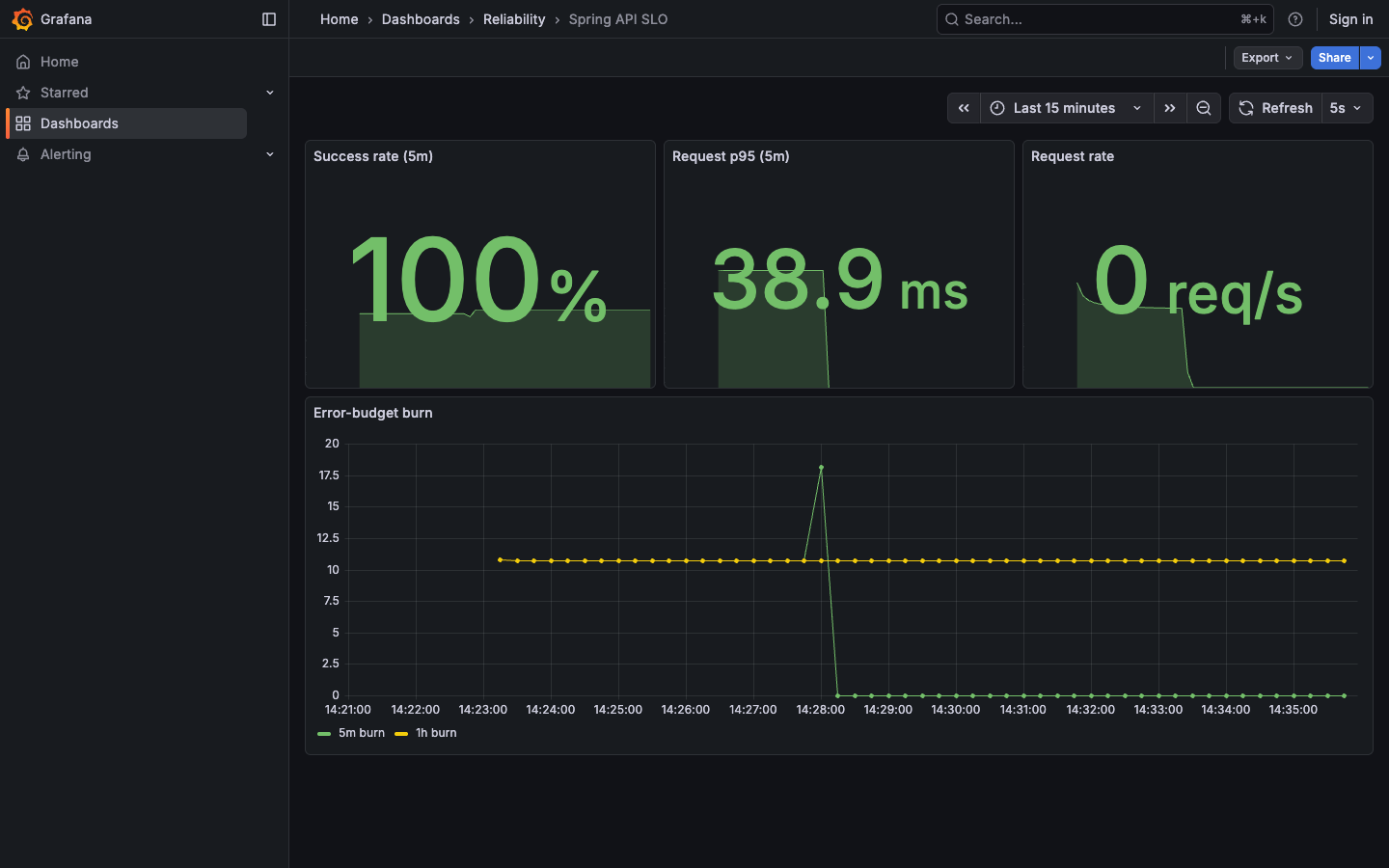
The burn chart is more useful than a wall of JVM gauges because it connects failures to the reliability objective. JVM memory, connection pools, and CPU remain valuable diagnostic panels, but they answer “why” after the service-level signal answers “whether users are affected.”
Verify the entire path
The experiment runs these checks rather than trusting that containers started:
docker compose exec -T prometheus \
  promtool check config /etc/prometheus/prometheus.yml

docker compose exec -T prometheus \
  promtool check rules /etc/prometheus/rules.yml

curl -fsS http://localhost:19090/-/ready
curl -fsS http://localhost:19093/-/ready
curl -fsS http://localhost:13049/api/health
It also queries the Prometheus API for the scrape target and a recording-rule result. A green Grafana container with an empty data source is not a successful monitoring deployment.
The observed traffic mix was deliberately unhealthy enough to exercise the queries:
| Request class | Count | Intended signal |
|---|---|---|
| Normal | 216 | Baseline request rate and latency |
| Slow | 12 | Upper histogram buckets and p95 movement |
| Failed | 12 | 5xx ratio and error-budget burn |
| Total | 240 | Known denominator for the experiment |
This is functional observability validation, not a capacity benchmark. It proves signal wiring and rule behavior.
Put cost into the review
Prometheus cost is driven by active series, scrape frequency, retention, rule evaluation, query load, and replication. Grafana cost is driven by its database, rendering/query activity, plugins, and high availability. Long-term storage adds its own object-store and compaction model.
For every new metric family, estimate:
series ≈ product of label cardinalities
samples/day ≈ series × 86,400 / scrape_interval_seconds
Then measure actual active-series and ingestion changes after deployment. Do not infer a cloud bill from one formula; compression, retention, remote write, replicas, and vendor pricing change the result.
My production checklist is now short and strict:
- Define the SLI and SLO before building the dashboard.
- Keep labels bounded and route-normalized.
- Put shared PromQL in tested recording rules.
- Route actionable alerts through Alertmanager with an owner and response.
- Keep management and operator surfaces private, authenticated, and encrypted.
- Provision dashboards and data sources from version-controlled files.
- Measure series growth and ingestion cost after every instrumentation change.
The relevant primary references are the Spring Boot Actuator metrics documentation, Prometheus recording-rule documentation, Prometheus alerting-rule documentation, and Grafana provisioning documentation.