On this page
JMeter is a load and performance test runner, not a unit-testing framework. A useful JMeter result is also not “the server handled 500 TPS.” It is a reproducible statement about one build, one workload shape, one environment, and several signals: offered load, achieved throughput, latency distribution, errors, and saturation.
I built a bounded experiment around a deterministic HTTP API and JMeter 5.6.3. The plan lives in a saved .jmx file, runs in non-GUI mode, writes raw JTL samples, generates the official HTML report, and passes or fails through an independently calculated gate.
Define the question before the thread group
The experiment asks a deliberately narrow question:
Can this local target sustain approximately 20 requests per second for 30 seconds while keeping the error ratio below 5% and p95 latency below 250 ms?
The target is synthetic. It injects known behavior so the analysis has something to find:
export function classifyRequest(sequence) {
  if (!Number.isInteger(sequence) || sequence < 1) {
    return { status: 400, delayMs: 0 };
  }
  if (sequence % 25 === 0) return { status: 503, delayMs: 30 };
  if (sequence % 10 === 0) return { status: 200, delayMs: 180 };
  return { status: 200, delayMs: 20 };
}
The API is not pretending to represent a real capacity limit. It makes latency and failure signals deterministic enough to verify the test machinery.
Concurrency is not throughput
A JMeter thread is a virtual user. Twenty threads do not imply 20 requests per second: response time, timers, ramp-up, connection reuse, and client-side scheduling all affect the achieved rate.
The saved plan controls the important variables:
| Variable | Value | Reason |
|---|---|---|
| Threads | 20 | Enough concurrency to sustain the target rate |
| Ramp-up | 10 s | Avoid an accidental synchronized connection burst |
| Duration | 30 s | Bounds the experiment |
| Throughput timer | 1,200/min | Targets approximately 20 requests/s |
| Connect timeout | 1 s | Separates connection failure from slow response |
| Response timeout | 2 s | Bounds stalled samples |
| Keep-alive | Enabled | Exercises normal connection reuse |
The core plan is version-controlled, not reconstructed through screenshots:
<ThreadGroup testname="Steady state" enabled="true">
  <stringProp name="ThreadGroup.num_threads">${__P(threads,20)}</stringProp>
  <stringProp name="ThreadGroup.ramp_time">10</stringProp>
  <boolProp name="ThreadGroup.scheduler">true</boolProp>
  <stringProp name="ThreadGroup.duration">${__P(duration,30)}</stringProp>
</ThreadGroup>

<ConstantThroughputTimer testname="Bounded throughput" enabled="true">
  <doubleProp>
    <name>throughput</name>
    <value>1200.0</value>
  </doubleProp>
  <intProp name="calcMode">1</intProp>
</ConstantThroughputTimer>
The workload sends a unique request ID, uses per-thread query data, and calls one GET endpoint. A production scenario would also define authentication, realistic data distribution, cache state, think time, and the ratio between different operations.
Run JMeter without the GUI
The GUI is useful for authoring and debugging. It is a poor load generator because listeners, result trees, and rendering consume memory and CPU that should be generating traffic.
The repeatable execution path is:
jmeter \
  -n \
  -t /tests/api-load-plan.jmx \
  -Jthreads=20 \
  -Jduration=30 \
  -l /artifacts/results.jtl \
  -e \
  -o /artifacts/report \
  -f
-n selects non-GUI mode, -t selects the saved plan, -l preserves raw samples, and -e -o generates the HTML report. Keeping the JTL matters: it lets another program verify the report instead of treating a screenshot as the source of truth.
Read the distribution, not the average
The measured run produced:
| Signal | Observed value |
|---|---|
| Samples | 617 |
| Failed samples | 16 |
| Error ratio | 2.59% |
| Achieved throughput | 20.58 requests/s |
| p50 | 24 ms |
| p95 | 184 ms |
| p99 | 188 ms |
| Maximum | 193 ms |
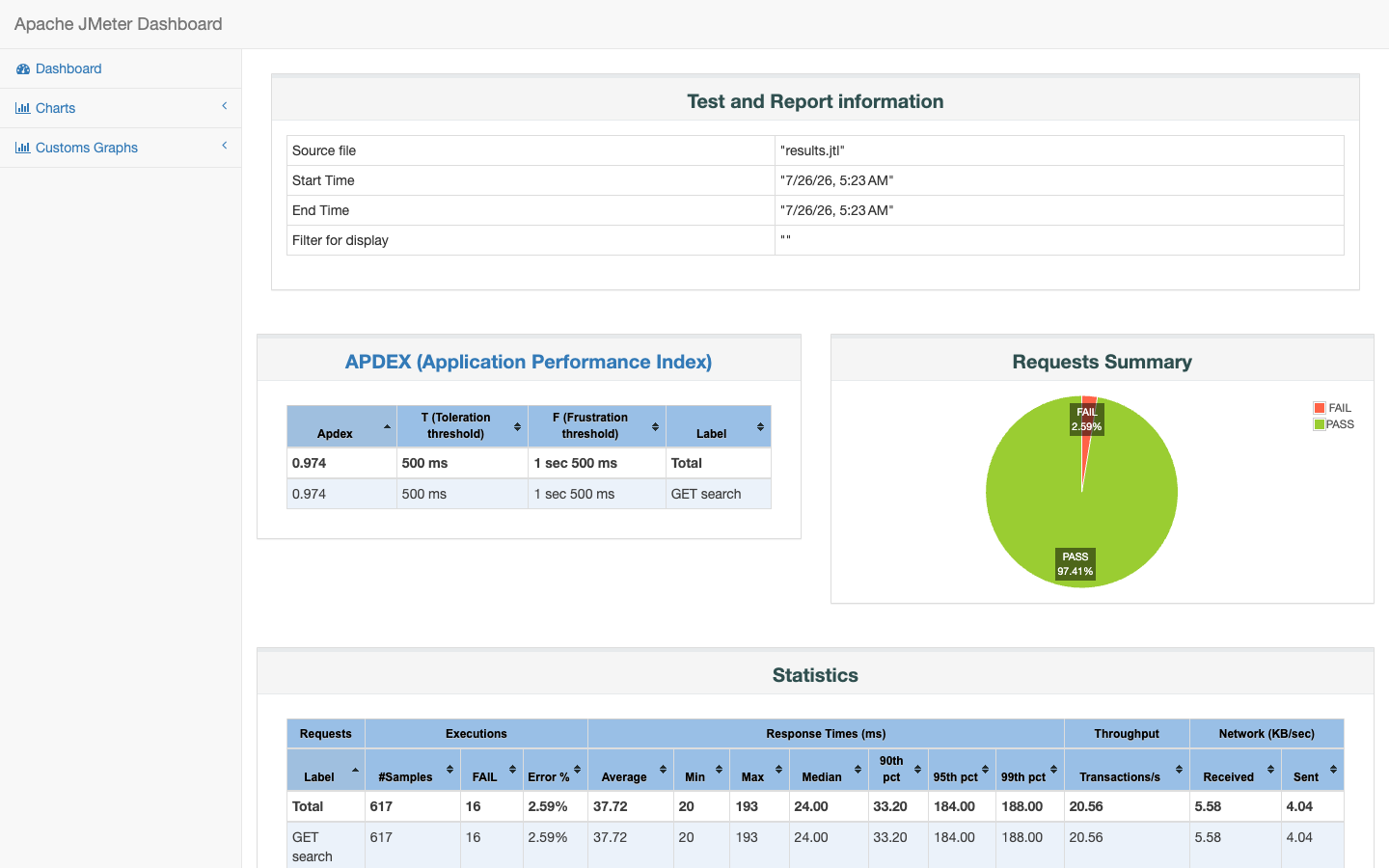
The average was 37.72 ms, which hides the deliberately slow tenth-request path. p50 stays near the 20 ms baseline, while p95 and p99 move into the 180 ms class. That is why an average alone is unsafe for an SLO or capacity decision.
The 16 failures also require context. The injected sequence is per virtual user. Because threads ramp up over ten seconds, only 16 threads reached their 25th request before the 30-second scheduler ended. The observed 2.59% is therefore consistent with the actual workload, but it is not a universal failure probability.
The achieved 20.58 requests/s is close to the requested 20. It is not exactly 20 because the scheduler starts and stops samples around the duration boundary, and throughput is calculated from first-sample to last-sample timestamps.
Verify the result independently
The gate reads the JTL-derived JSON rather than scraping the HTML:
const failures = [];

if (summary.errorRate > 0.05) {
  failures.push(`error rate ${summary.errorRate} exceeds 0.05`);
}
if (summary.latencyMs.p95 > 250) {
  failures.push(`p95 ${summary.latencyMs.p95}ms exceeds 250ms`);
}
if (summary.samples < 300) {
  failures.push(`only ${summary.samples} samples were recorded`);
}

if (failures.length) {
  console.error(failures.join('\n'));
  process.exit(1);
}
Three checks are important here:
- The error ratio is part of the result, not discarded before latency analysis.
- The percentile is calculated from individual elapsed samples.
- A minimum sample count prevents an accidentally short run from passing.
A stronger production gate would distinguish warm-up from steady state, define acceptable response codes per request type, verify the achieved load band, and compare several repetitions rather than one run.
Correlate the bottleneck
JMeter describes what the client observed. It does not identify the bottleneck. During a real test, align the JTL timestamps with:
- application request rate, error ratio, and latency histograms;
- CPU throttling, allocation rate, garbage collection, and thread pools;
- database connection-pool wait time, slow queries, locks, and I/O;
- downstream latency, retries, circuit breakers, and rate limits;
- load-generator CPU, memory, sockets, and network throughput.
If the generator is saturated, a flat throughput curve may describe the client machine rather than the service. Run the generator separately from the system under test and monitor both.
What this run does not prove
This local result proves that the saved scenario and gates behave as designed. It does not prove production capacity, a safe autoscaling target, or the maximum sustainable throughput.
Before making one of those claims, I would add:
- representative production data volume and cache state;
- a warm-up phase and a stable measurement phase;
- repeated runs of the same commit with variance reported;
- step, stress, and soak profiles in addition to steady load;
- server-side saturation evidence and a clearly defined stop condition;
- a separate test for coordinated omission if request timing requires it.
The practical rule is simple: save the workload, run it without the GUI, preserve raw samples, report percentiles and errors together, and refuse to call one uncontrolled run a capacity number.
The JMeter getting-started guide, dashboard report documentation, and best-practices guide are the primary references for the execution choices above.